> ## Documentation Index
> Fetch the complete documentation index at: https://docs.openfinance-hackathon.com/llms.txt
> Use this file to discover all available pages before exploring further.
# API | Open Finance Data Sharing
> Step-by-step guide to initiate your first Open Finance data sharing request using the Starter Kit API, including creating consent, authorizing in the sandbox, obtaining an access token, and initiating the data sharing request.
export const Carousel = () => {
const images = [{
src: '/images/model-bank/authenticate.png',
alt: 'Step 1',
title: 'Authenticate at AlTareq Model Bank'
}, {
src: '/images/model-bank/authorize.png',
alt: 'Step 5',
title: 'Authorize the consent'
}];
let currentIndex = 0;
const showSlide = index => {
const slides = document.querySelectorAll(".carousel-image");
const titles = document.querySelectorAll(".carousel-title");
const tags = document.querySelectorAll(".carousel-tagline");
const steps = document.querySelectorAll(".carousel-step");
slides.forEach((img, i) => img.style.display = i === index ? "block" : "none");
titles.forEach((title, i) => title.style.display = i === index ? "block" : "none");
tags.forEach((tag, i) => tag.style.display = i === index ? "block" : "none");
steps.forEach((step, i) => step.textContent = `Step ${index + 1}/${images.length}`);
};
const next = () => {
currentIndex = (currentIndex + 1) % images.length;
showSlide(currentIndex);
};
const prev = () => {
currentIndex = (currentIndex - 1 + images.length) % images.length;
showSlide(currentIndex);
};
React.useEffect(() => {
showSlide(0);
}, []);
return
{images.map((img, i) =>
{img.title}
)}
Step 1/{images.length}
;
};
Now that your client is registered, you can proceed to make your first bank data sharing request.
This guide will walk you through the example step by step.
## Step 1 - Create the data sharing consent.
To initiate a bank data sharing request, you must first create a consent request.
Send a POST request to the following endpoint:
`/consent-create/bank-data`
specifying the desired data permissions.
Behind the scenes, this request triggers a [Pushed Authorization Request (PAR)](./par) (of type AEAccountAccessAuthorizationDetailsConsent) to the Al Tareq Sandbox Model Bank to create the consent.
If your Consent request is accepted, you’ll receive a response similar to the one below:
```json theme={null}
{
"redirect": "https://auth1.altareq1.sandbox.apihub.openfinance.ae/auth?client_id=https://rp.sandbox.directory.openfinance.ae/openid_relying_party/7039a1c5-67e4-4452-9d51-9cae79df8c4a&response_type=code&scope=openid&request_uri=urn:ietf:params:oauth:request_uri:0b7da623-848a-49dc-9630-a0d89078c256",
"consent_id": "aa213912-65d4-403a-b7ca-32598eeb9758",
"code_verifier": "a83ec9b6-aaa5-49ed-844c-8472502c8e7339f34116-eb79-4d40-89fb-ec4339331daf"
}
```
#### Response Description
| Field | Description |
| --------------- | ---------------------------------------------------------------------------------------------------------------------------------------------- |
| `redirect` | The URL you should redirect the user to. This initiates the authentication and authorization process with the **Al Tareq Sandbox Model Bank**. |
| `consent_id` | The unique identifier for the consent you’ve just created. Keep this safe — it will be required in later steps. |
| `code_verifier` | A PKCE code verifier associated with this authorization flow. You’ll need this value when exchanging authorization codes. |
### Next Step
Open the `redirect` URL in a browser. This will take you to the **Al Tareq Sandbox Model Bank** authorization page, where the user can review and approve the consent.
💡 **Tip:** Be sure to **store both the `consent_id` and the `code_verifier` securely** — you’ll need them in subsequent steps of the payment flow.
## Step 2 – Authenticate and Authorize in the Al Tareq Sandbox Model Bank
Once you open the `redirect` URL from the previous step, you’ll be taken to the **Al Tareq Sandbox Model Bank** for authentication and authorization.
### Authentication
You’ll need to sign in using the **credentials** provided in your client pack. These include the **username** and **password** assigned specifically for your testing users.
After successful authentication, you’ll be redirected to the consent authorization screen.
### Authorization
On this screen, you will be prompted to **select the accounts** to share the data from. You’ll also see the details of the consent you created earlier — including:
* The **data permissions**
* The **consent expiry date**
...
Once you confirm and authorize the consent, the Al Tareq Sandbox Model Bank will process your authorization and redirect you back to the redirect URI:
`http://localhost:1411/hackathon-redirect`
with an authorization code.
💡 **Tip:** Example of a successful callback `http://localhost:1411/hackathon-redirect?code=4c5d6295-ff1b-4d13-a232-1eebacec9a0c&state=9d196e63-9bc2-4c28-8bf9-225c07ce0fc5&iss=https://auth1.altareq1.sandbox.apihub.openfinance.ae`
## Step 3 – Get an Access Token
After successfully authorizing the consent in the **Al Tareq Sandbox Model Bank**, you’ll be redirected back to your application with an **authorization code** included in the callback URL.
You can now exchange the code for an access token by making a `POST` request to the following endpoint:
`/token/authorization-code`
with the code returned in the redirect back from the Model Bank:
💡 **Tip:** Example of code `code=4c5d6295-ff1b-4d13-a232-1eebacec9a0c`
and the `code_verifier` returned when you created the consent. If you have done this sucessfully you will receive a JSON response similar to the following:
```json theme={null}
{
"access_token": "0cd6e8ef-bbb6-44e3-911b-7ad0e5a20780",
"expires_in": 600,
"token_type": "Bearer",
"scope": "payments openid",
"state": "99a07ac8-8943-4923-8d2b-c1a2318469db",
"authorization_details": [
{ ... }
],
"grant_id": "881118d2-e98e-4762-9fc1-a9f7f272b45b",
"id_token": "eyJhbGciOiJQUzI1NiIsImtpZCI6..."
}
```
## Step 4 – Getting accounts
Now that you have the access token the only thing that is left is to get the bank data payment by making a `GET` request to the following endpoint:
`/open-finance/account-information/v1.2/accounts`
Behind the scenes, this request triggers [Get Accounts (GET /accounts)](../../bank-data-sharing/) to the Al Tareq Sandbox Model Bank to retrieve the selected accounts.
#### Accounts Response
```json theme={null}
{
"Data": {
"Account": [
{
"AccountId": "100004000000000000000002",
"AccountHolderName": "Account001Jack",
"AccountHolderShortName": "000001Jack",
"Status": "Inactive",
"Currency": "AED",
"Nickname": "1000040000000000Jack",
"AccountType": "Corporate",
"AccountSubType": "Savings",
"StatusUpdateDateTime": "2017-04-05T10:43:07+00:00",
"AccountIdentifiers": [
{
"SchemeName": "AccountNumber",
"Identification": "10000109010102",
"Name": "Luigi International"
}
],
"Servicer": {
"SchemeName": "Other",
"Identification": "10000109010101"
}
}
]
},
"Meta": {
"TotalPages": 1
},
"Links": {
"Self": "https://rs1.altareq1.sandbox.apihub.openfinance.ae/open-finance/account-information/v1.2/accounts"
}
}
```
💡 **Tip:** You can now make requests to the other Bank Data sharing endpoints `/open-finance/account-information/v1.2/accounts/{accountId}/balances` by taking the `AccountId` returned in `GET /accounts`
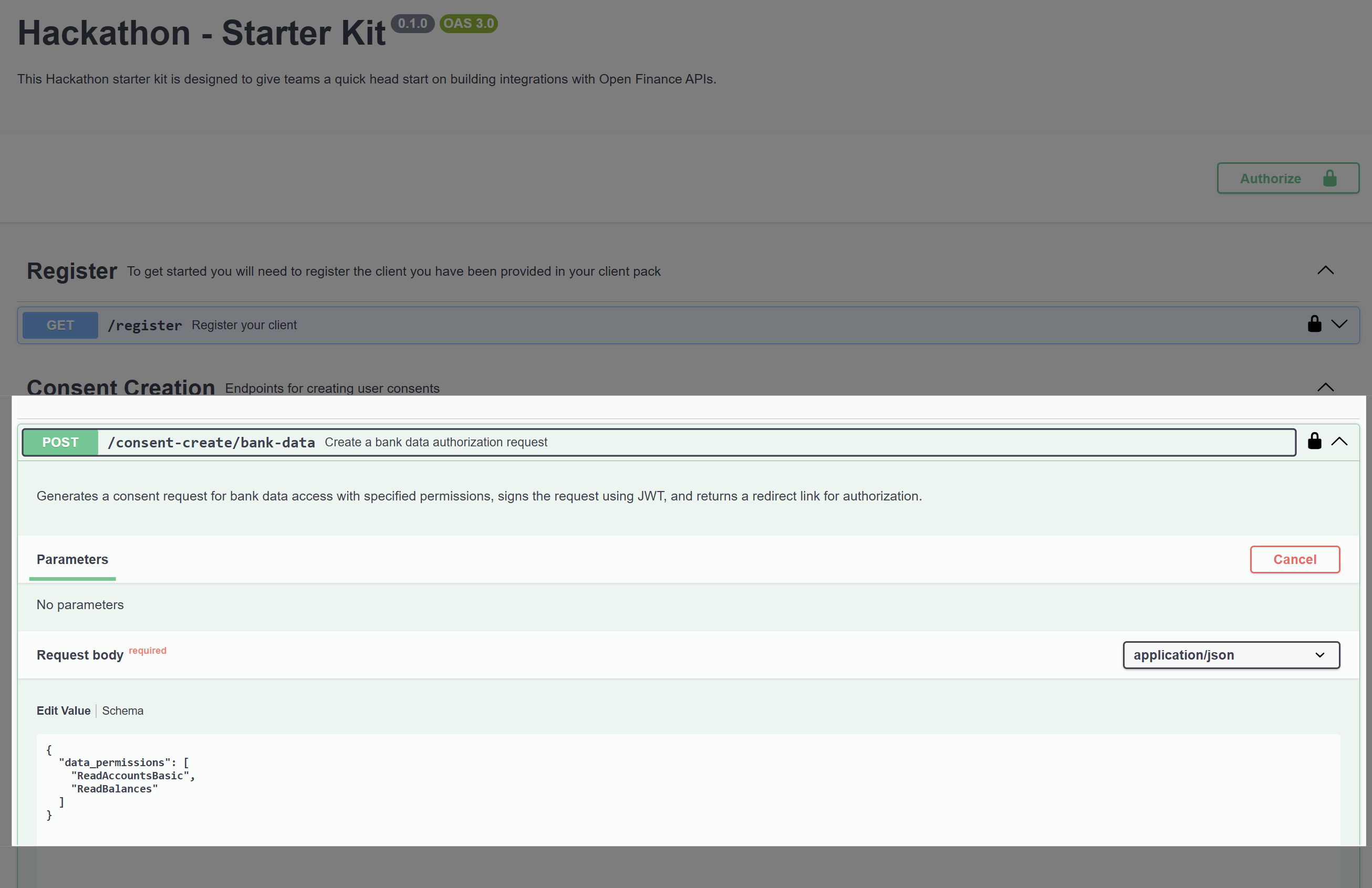 specifying the desired data permissions.
Behind the scenes, this request triggers a [Pushed Authorization Request (PAR)](./par) (of type AEAccountAccessAuthorizationDetailsConsent) to the Al Tareq Sandbox Model Bank to create the consent.
If your Consent request is accepted, you’ll receive a response similar to the one below:
```json theme={null}
{
"redirect": "https://auth1.altareq1.sandbox.apihub.openfinance.ae/auth?client_id=https://rp.sandbox.directory.openfinance.ae/openid_relying_party/7039a1c5-67e4-4452-9d51-9cae79df8c4a&response_type=code&scope=openid&request_uri=urn:ietf:params:oauth:request_uri:0b7da623-848a-49dc-9630-a0d89078c256",
"consent_id": "aa213912-65d4-403a-b7ca-32598eeb9758",
"code_verifier": "a83ec9b6-aaa5-49ed-844c-8472502c8e7339f34116-eb79-4d40-89fb-ec4339331daf"
}
```
#### Response Description
| Field | Description |
| --------------- | ---------------------------------------------------------------------------------------------------------------------------------------------- |
| `redirect` | The URL you should redirect the user to. This initiates the authentication and authorization process with the **Al Tareq Sandbox Model Bank**. |
| `consent_id` | The unique identifier for the consent you’ve just created. Keep this safe — it will be required in later steps. |
| `code_verifier` | A PKCE code verifier associated with this authorization flow. You’ll need this value when exchanging authorization codes. |
### Next Step
Open the `redirect` URL in a browser. This will take you to the **Al Tareq Sandbox Model Bank** authorization page, where the user can review and approve the consent.
specifying the desired data permissions.
Behind the scenes, this request triggers a [Pushed Authorization Request (PAR)](./par) (of type AEAccountAccessAuthorizationDetailsConsent) to the Al Tareq Sandbox Model Bank to create the consent.
If your Consent request is accepted, you’ll receive a response similar to the one below:
```json theme={null}
{
"redirect": "https://auth1.altareq1.sandbox.apihub.openfinance.ae/auth?client_id=https://rp.sandbox.directory.openfinance.ae/openid_relying_party/7039a1c5-67e4-4452-9d51-9cae79df8c4a&response_type=code&scope=openid&request_uri=urn:ietf:params:oauth:request_uri:0b7da623-848a-49dc-9630-a0d89078c256",
"consent_id": "aa213912-65d4-403a-b7ca-32598eeb9758",
"code_verifier": "a83ec9b6-aaa5-49ed-844c-8472502c8e7339f34116-eb79-4d40-89fb-ec4339331daf"
}
```
#### Response Description
| Field | Description |
| --------------- | ---------------------------------------------------------------------------------------------------------------------------------------------- |
| `redirect` | The URL you should redirect the user to. This initiates the authentication and authorization process with the **Al Tareq Sandbox Model Bank**. |
| `consent_id` | The unique identifier for the consent you’ve just created. Keep this safe — it will be required in later steps. |
| `code_verifier` | A PKCE code verifier associated with this authorization flow. You’ll need this value when exchanging authorization codes. |
### Next Step
Open the `redirect` URL in a browser. This will take you to the **Al Tareq Sandbox Model Bank** authorization page, where the user can review and approve the consent.
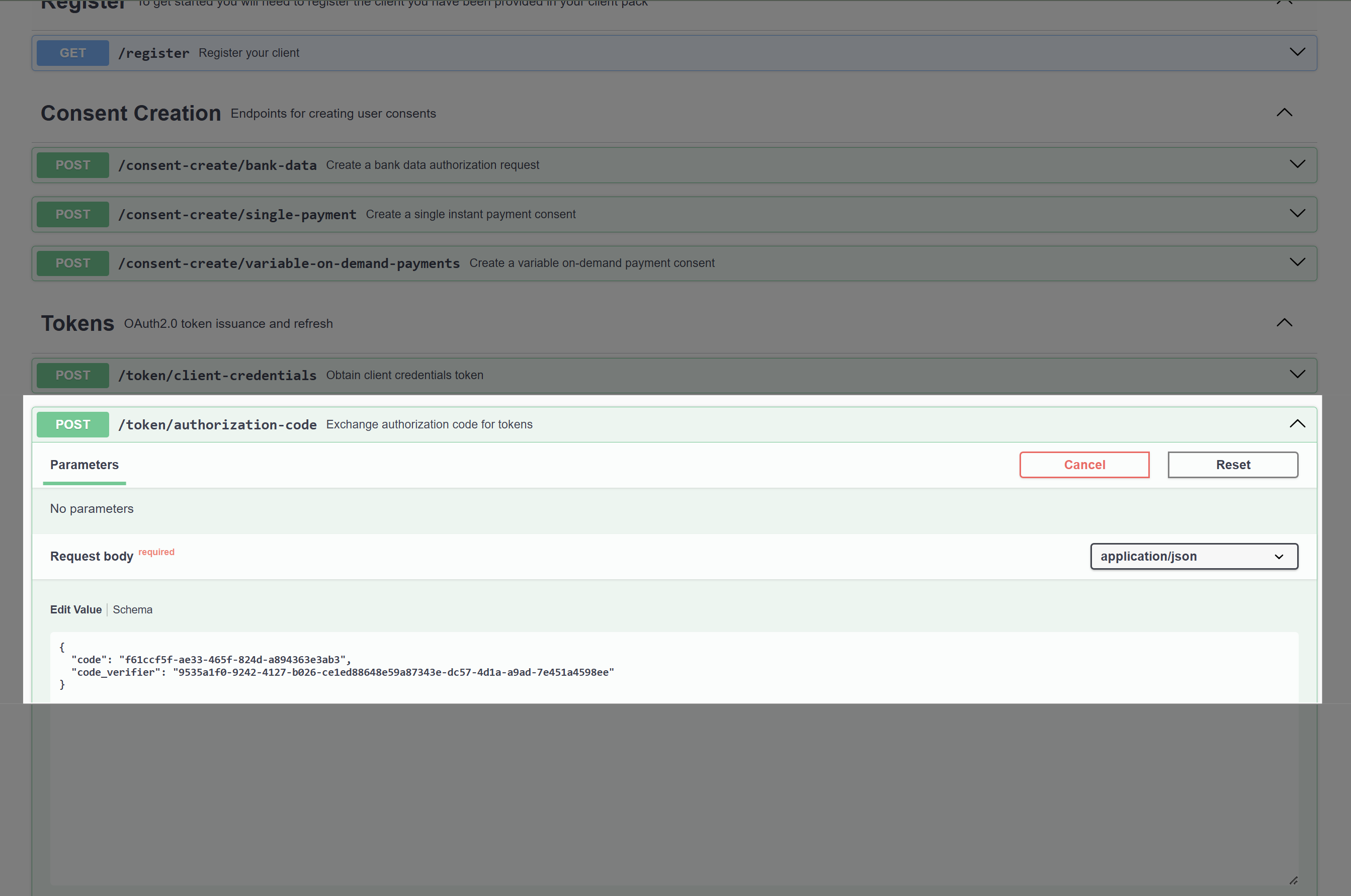 with the code returned in the redirect back from the Model Bank:

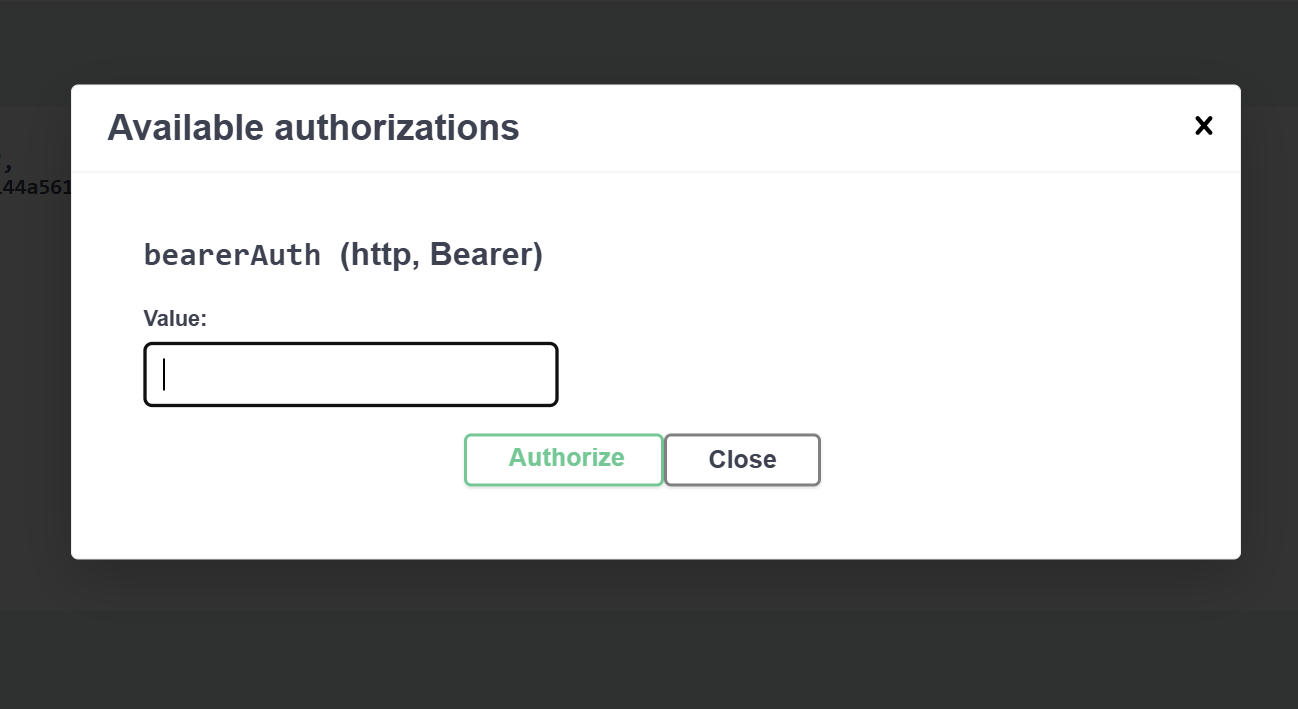 Behind the scenes, this request triggers [Get Accounts (GET /accounts)](../../bank-data-sharing/) to the Al Tareq Sandbox Model Bank to retrieve the selected accounts.
#### Accounts Response
```json theme={null}
{
"Data": {
"Account": [
{
"AccountId": "100004000000000000000002",
"AccountHolderName": "Account001Jack",
"AccountHolderShortName": "000001Jack",
"Status": "Inactive",
"Currency": "AED",
"Nickname": "1000040000000000Jack",
"AccountType": "Corporate",
"AccountSubType": "Savings",
"StatusUpdateDateTime": "2017-04-05T10:43:07+00:00",
"AccountIdentifiers": [
{
"SchemeName": "AccountNumber",
"Identification": "10000109010102",
"Name": "Luigi International"
}
],
"Servicer": {
"SchemeName": "Other",
"Identification": "10000109010101"
}
}
]
},
"Meta": {
"TotalPages": 1
},
"Links": {
"Self": "https://rs1.altareq1.sandbox.apihub.openfinance.ae/open-finance/account-information/v1.2/accounts"
}
}
```
Behind the scenes, this request triggers [Get Accounts (GET /accounts)](../../bank-data-sharing/) to the Al Tareq Sandbox Model Bank to retrieve the selected accounts.
#### Accounts Response
```json theme={null}
{
"Data": {
"Account": [
{
"AccountId": "100004000000000000000002",
"AccountHolderName": "Account001Jack",
"AccountHolderShortName": "000001Jack",
"Status": "Inactive",
"Currency": "AED",
"Nickname": "1000040000000000Jack",
"AccountType": "Corporate",
"AccountSubType": "Savings",
"StatusUpdateDateTime": "2017-04-05T10:43:07+00:00",
"AccountIdentifiers": [
{
"SchemeName": "AccountNumber",
"Identification": "10000109010102",
"Name": "Luigi International"
}
],
"Servicer": {
"SchemeName": "Other",
"Identification": "10000109010101"
}
}
]
},
"Meta": {
"TotalPages": 1
},
"Links": {
"Self": "https://rs1.altareq1.sandbox.apihub.openfinance.ae/open-finance/account-information/v1.2/accounts"
}
}
```